AI Object Remover
Remove objects from your image just by brushing over them. This AI object remover erases people, signs, watermarks, and clutter, then reconstructs the background automatically — no typing, no complex editing.
Object Eraser
Drag image here, click to browse, or paste from clipboard
Max size: 5MB
Result
Drag the slider to compare before and after.
Brush-Precise Removal
Paint over exactly what you want gone — one person in a crowd, a sign, a power line. The AI object remover lets you remove objects precisely — it erases only what you cover and leaves the rest untouched.


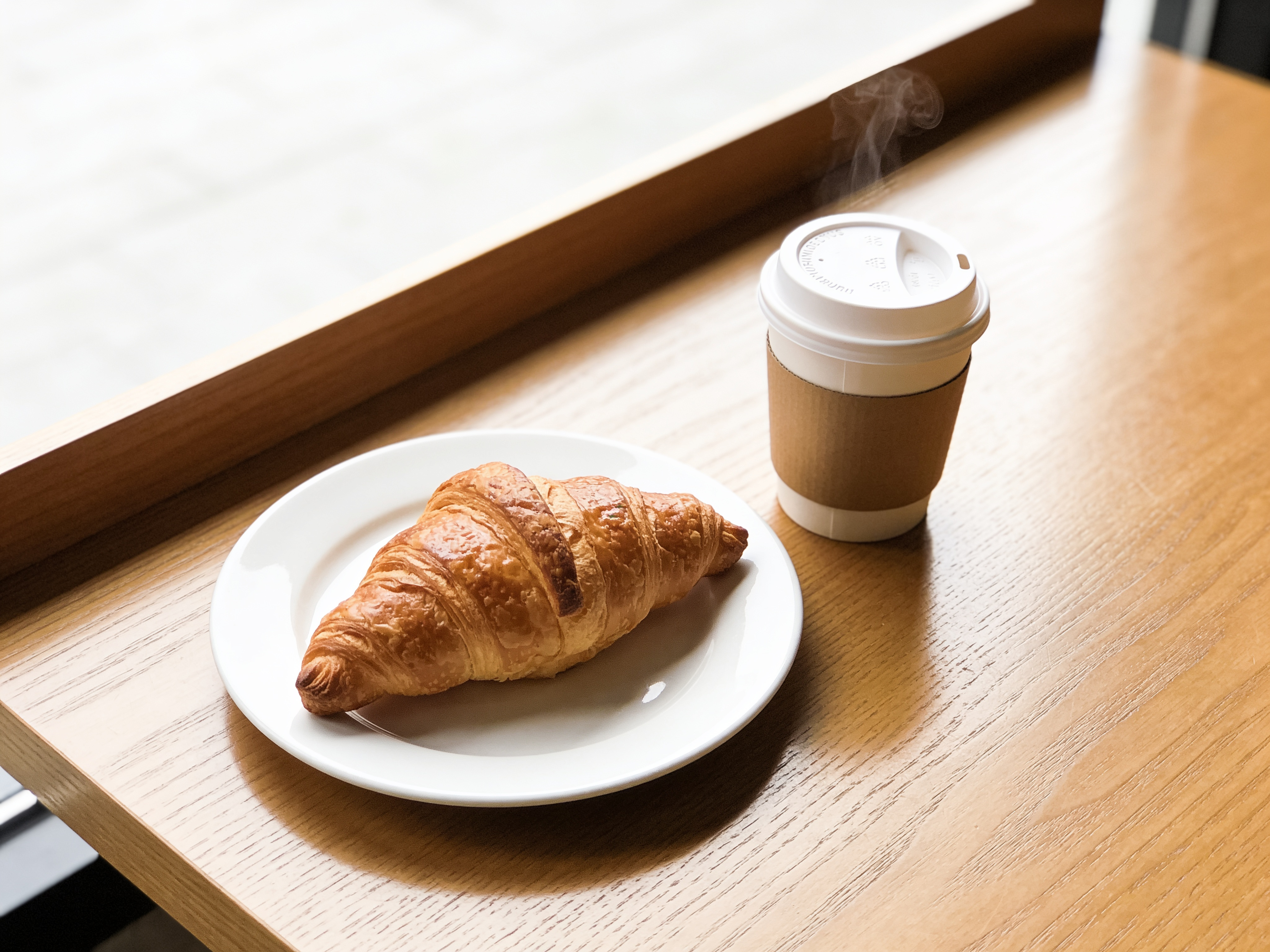
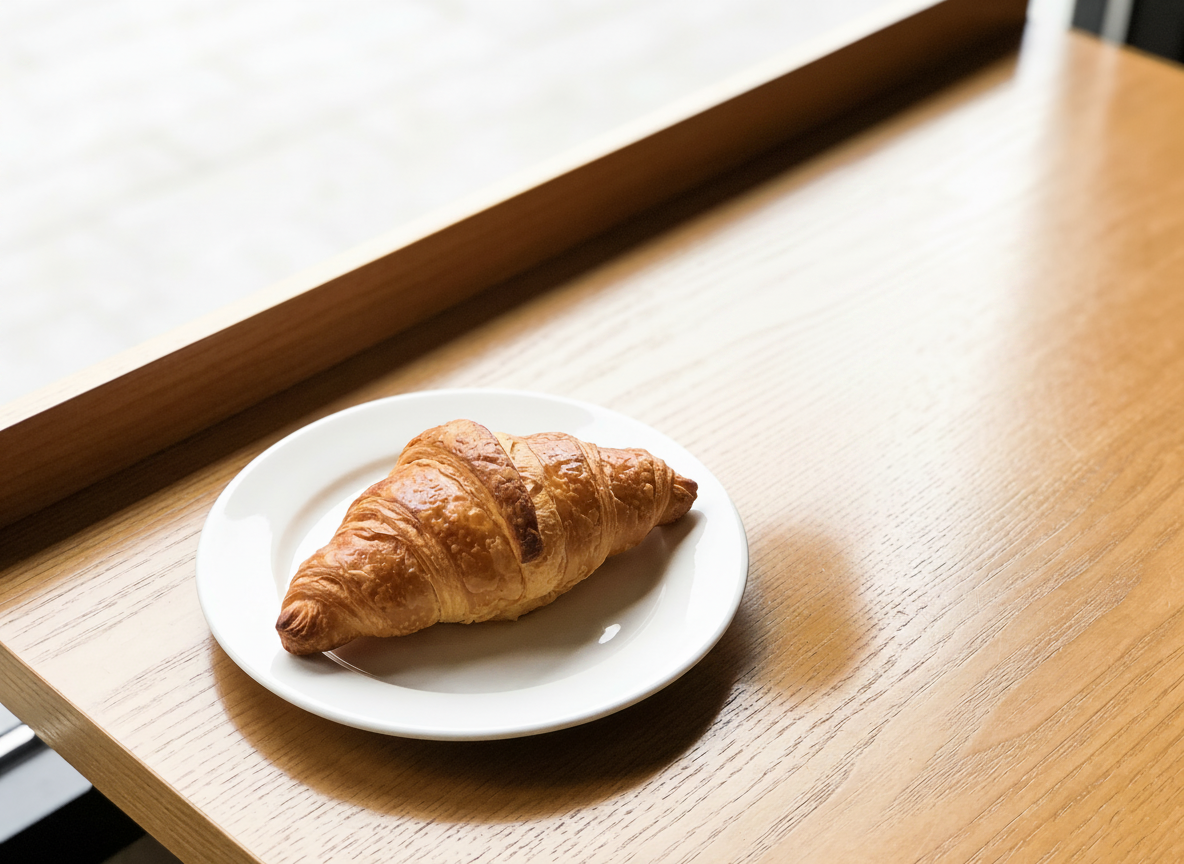


Seamless Background Rebuild
After you remove an object from the image, the AI reconstructs the space behind it using surrounding textures, lighting, and patterns — no smudges or empty patches.
AI Object Remover vs Manual Photoshop
Erasing an object by hand means clone-stamping and healing pixel by pixel. Here's what a brush and AI change.
AI Object Remover
- Brush over the object — erased in seconds
- Background rebuilt automatically, no cloning
- No layers, masks, or retouching skills
- Works on people, signs, watermarks, clutter
Manual Photoshop Editing
- Clone-stamp and heal pixel by pixel
- Matching lighting and texture by hand
- Needs real retouching skill and time
- Easy to leave smears or obvious patches
Just need to erase text or a watermark? The [text remover](/remove-text-from-image) is tuned for that — use the object remover for people, objects, and anything you brush over.
What People Remove from Their Photos
The everyday cleanups a brush-based AI object remover handles best.
Clear Tourists from Travel Shots
Get the clean landmark photo you wanted. Brush over the strangers wandering through your shot and remove them from the image — the background fills in like they were never there.
Erase Watermarks & Logos
Remove a distracting watermark, date stamp, or logo from a photo. Paint over it and the AI object remover rebuilds the area underneath cleanly.
Declutter Product & Room Photos
Tidy up listings and real-estate shots — remove objects, cords, or clutter — a clean, professional image without a reshoot.
Pro Tips for Cleaner Removal
Small brushing habits that make removals look invisible.
Cover the whole object — and its shadow
Brush over the object plus any shadow or reflection it casts. Leaving the shadow behind is the most common giveaway that something was removed.
Paint a little past the edges
Extend the brush slightly beyond the object's outline so the AI has clean pixels to blend into — a too-tight mask can leave a faint halo.
Simple backgrounds erase best
Objects against sky, water, grass, or a plain wall vanish almost perfectly. Busy or highly detailed backgrounds are harder — brush carefully.
Remove one thing at a time for tricky shots
For a cluttered scene, erasing objects in a couple of passes often looks cleaner than covering everything in one big mask.
HOW TO
How to Remove Objects — 3 Simple Steps
Upload Your Photo
Start by uploading the image you want to clean up. High-resolution photos give the AI more context for a natural-looking fill.
Brush Over the Object
Paint over the object, person, or blemish you want to remove — the brush marks the area, and the AI erases exactly what you cover.
Download the Clean Result
Preview the before/after, then download in full quality. The background is reconstructed automatically for a seamless finish.
FAQ