AI Image Enhancer
Make any photo look better in one click. This AI image enhancer unblurs, denoises, and sharpens low-quality photos — restoring detail, color, and clarity automatically. Great for portraits, old photos, and phone snaps.
Drag image here, click to browse, or paste from clipboard
Max size: 1MB
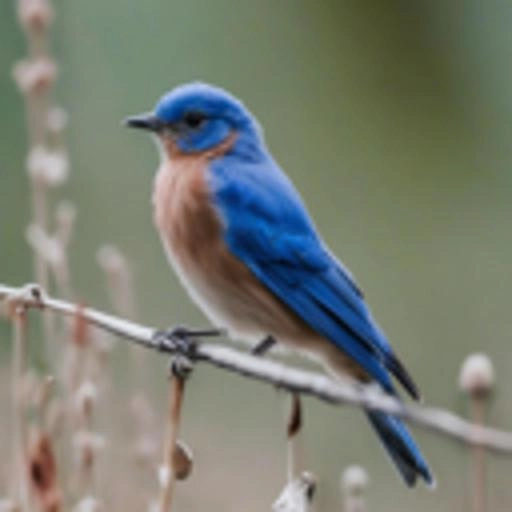
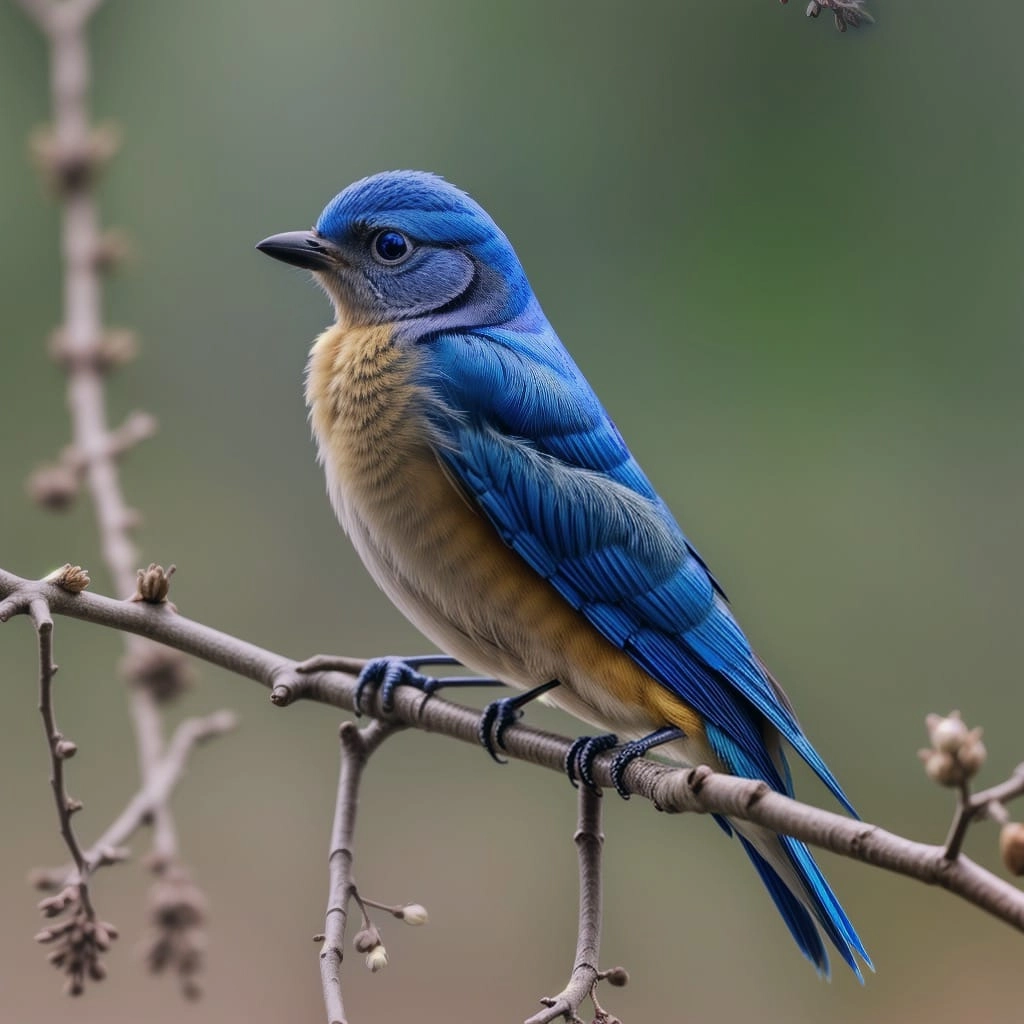
Processing typically takes 10–30 seconds depending on image complexity
Save your results promptly — enhanced images are automatically cleaned up after some time for privacy
HOW TO
How to Enhance Your Images
Upload Your Photo
Drag and drop or browse to upload any JPG or PNG image. Higher-resolution originals produce the best results, but even tiny thumbnails benefit from AI enhancement.
Choose Your Scale Factor
Select 1×, 2×, or 3× upscaling. Lower values work well for noise reduction and sharpening; higher values dramatically increase resolution for print-ready output.
Download the Enhanced Image
Preview the before-and-after comparison, then download your result in full quality. Processing usually takes 10–30 seconds.
Unblur & Sharpen Photos
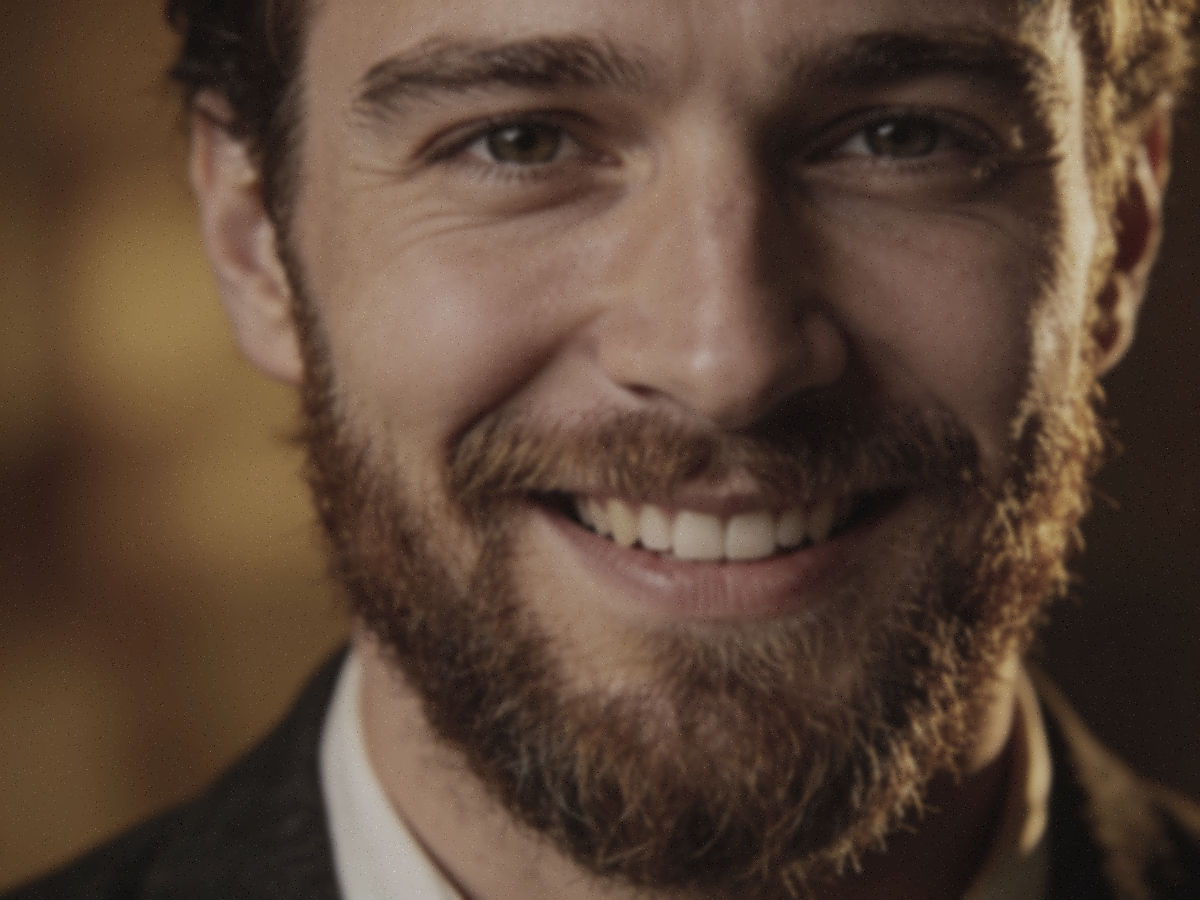
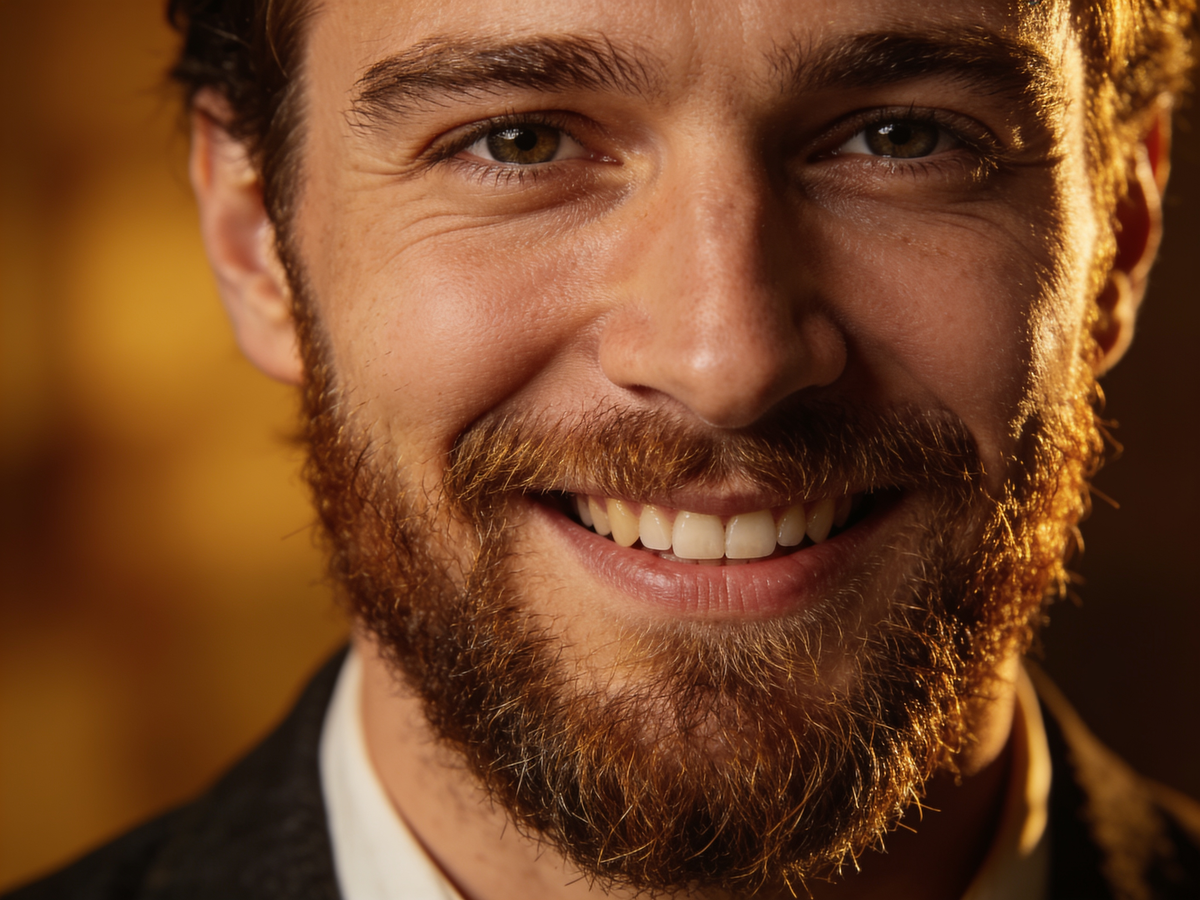
Rescue soft, out-of-focus, and motion-blurred shots. The AI image enhancer rebuilds crisp edges and fine detail — recovering facial features and textures that a blurry photo seemed to have lost for good.
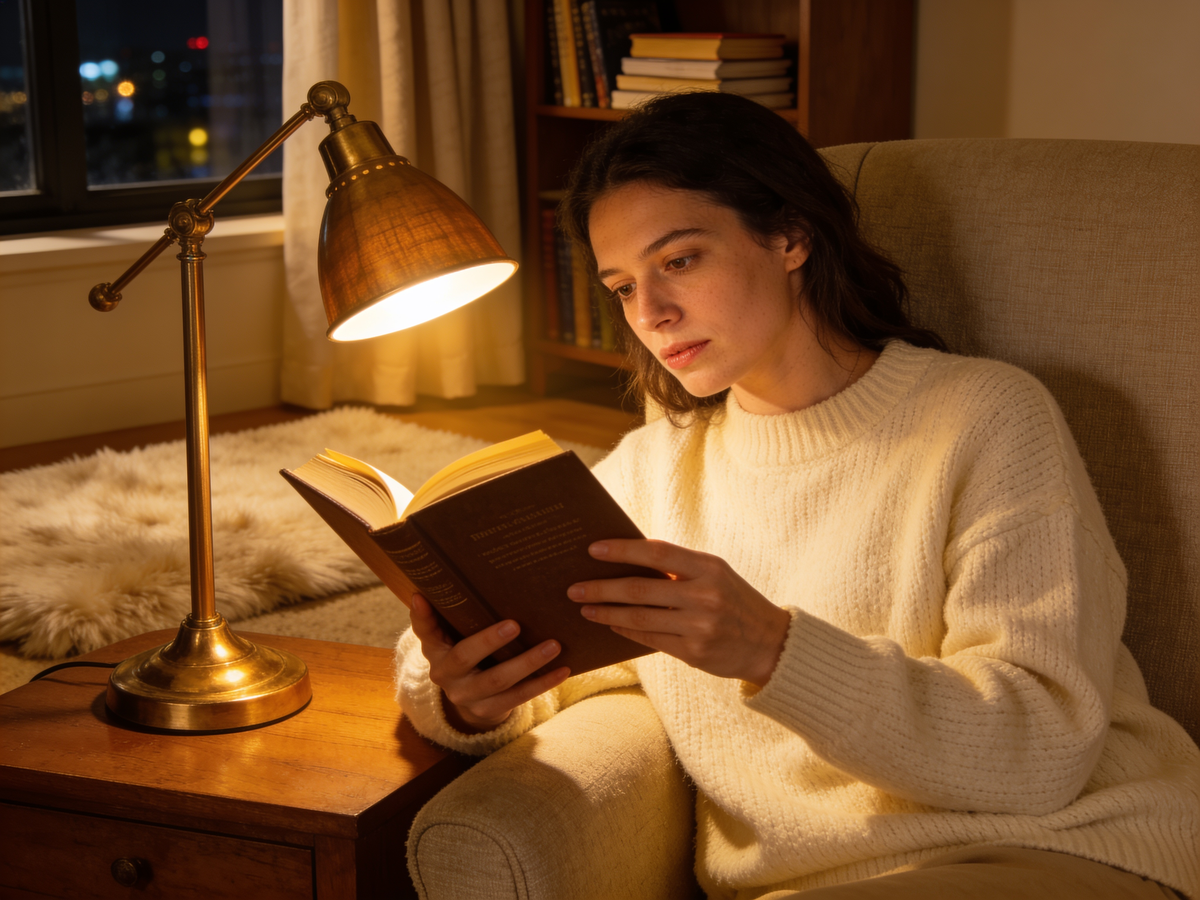
Denoise Dark & Grainy Shots
Low-light and high-ISO photos come out clean instead of speckled. Smart denoising separates real detail from sensor noise and compression artifacts, so night and indoor shots look clear and natural.
Restore Old & Faded Photos
Bring life back to vintage scans and washed-out images. The image enhancer revives faded color, boosts contrast, and sharpens soft detail — perfect for old family photos and archives.
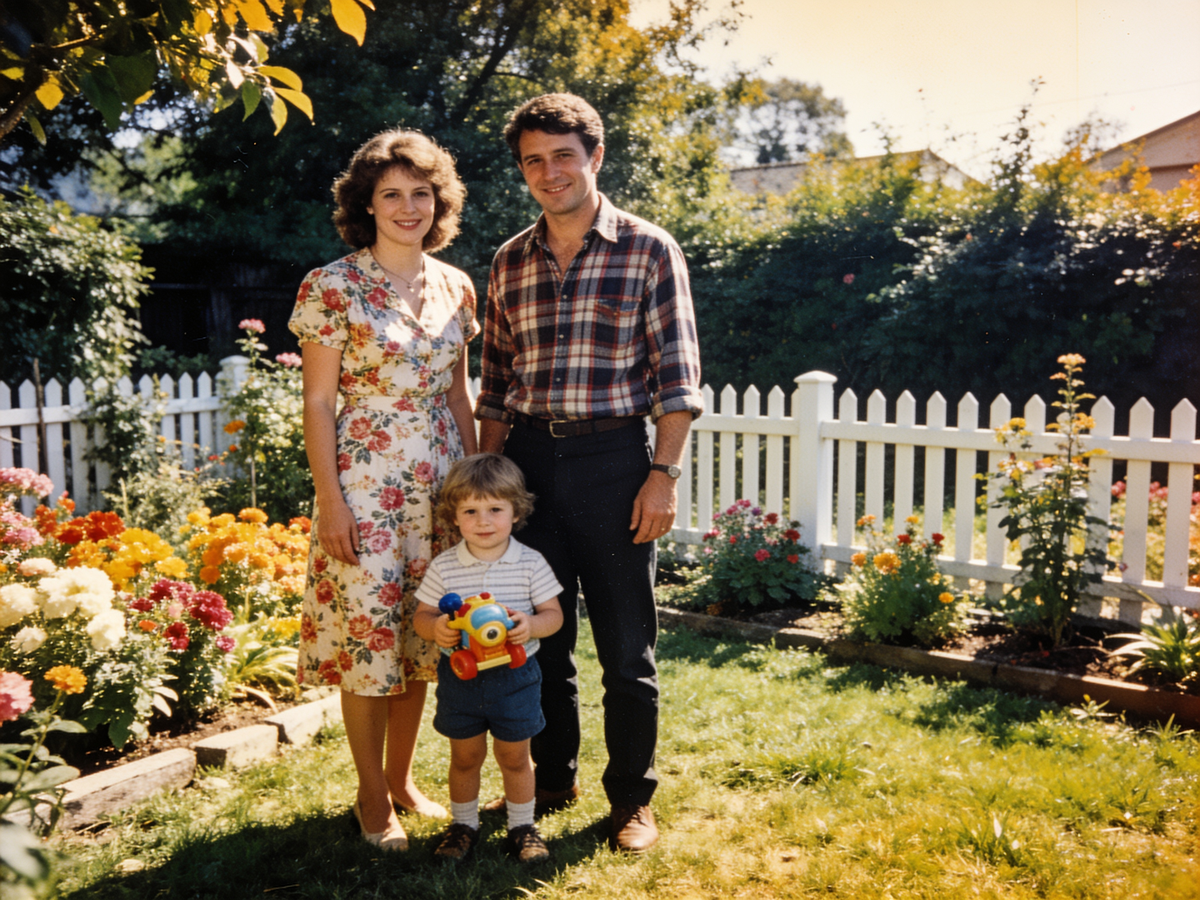
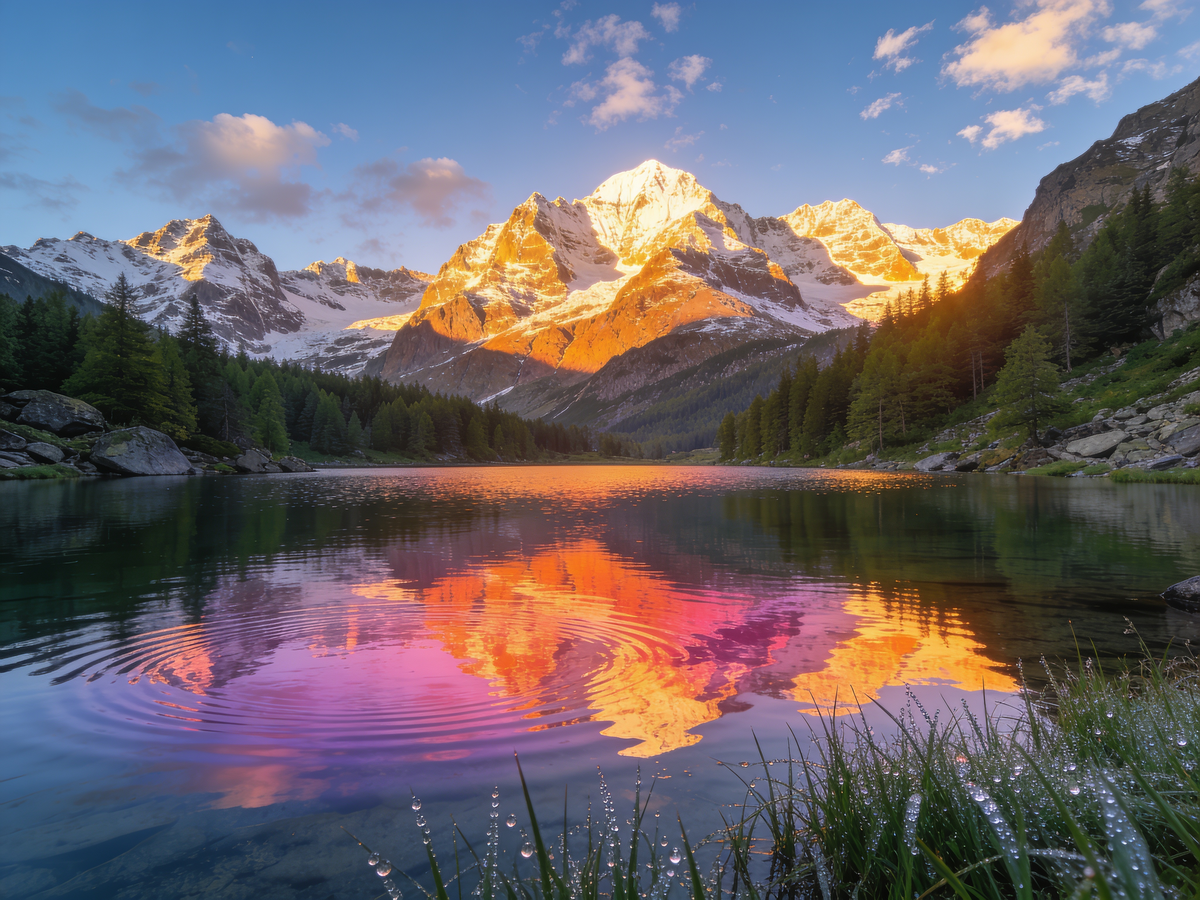


Boost Color & Clarity
Dull, flat photos get richer color, better contrast, and a crisp, vivid finish — without the over-processed plastic look. One click takes a lifeless snap to share-ready quality.
AI Image Enhancer vs Manual Editing
Fixing a bad photo by hand means juggling sliders and masks. Here's what one-click AI enhancement changes.
AI Image Enhancer
- Unblurs, denoises, and sharpens in one click
- Restores color and contrast automatically
- No sliders, masks, or editing skills needed
- Consistent results across a whole batch
Manual Photo Editing
- Tweaking sliders for every photo, one by one
- Sharpening often adds halos and noise
- Needs Photoshop skills and lots of time
- Hard to get a consistent look across photos
Just need a bigger image at higher resolution? The [AI image upscaler](/image-upscaler) enlarges photos up to 4x — use the enhancer to improve quality at the current size, the upscaler to add pixels.
What People Enhance Photos For
Where a one-click AI image enhancer saves the shot.
Rescue Blurry Phone Photos
That once-in-a-lifetime shot came out soft? The enhancer sharpens blur and recovers detail so a near-miss becomes a keeper worth posting or printing.
Revive Old Family Photos
Scan a faded print and let the AI restore color, contrast, and sharpness. Old memories look vivid again — no darkroom or Photoshop skills required.
Polish Product & Profile Shots
Turn a dull, noisy photo into a clean, professional image for your store listing, resume, or social profile — enhanced in seconds, not an editing session.
Pro Tips for Better Enhancement
Get the most natural result from the AI image enhancer.
Don't over-enhance
For photos that are already decent, a lighter enhancement keeps them looking natural. Heavy processing on a good photo can look artificial.
Enhance before resizing
Clean up blur and noise first, then resize. Enhancing a small clean image beats enhancing a large noisy one.
For big enlargements, upscale too
The enhancer improves quality at the current size. To also make the image much larger, run it through the [AI image upscaler](/image-upscaler) afterward.
Start from the best original
The clearer your starting photo, the better the result. A first-generation scan or original file beats a screenshot of a screenshot.
FAQ