Image to Image AI
Turn one image into another with a prompt. This AI restyles, edits, and transforms your photo — from subtle touch-ups to full artistic conversions — no editing skills required.
Image to Image AI
Drag image here, click to browse, or paste from clipboard
Max size: 5MB
Advanced Settings
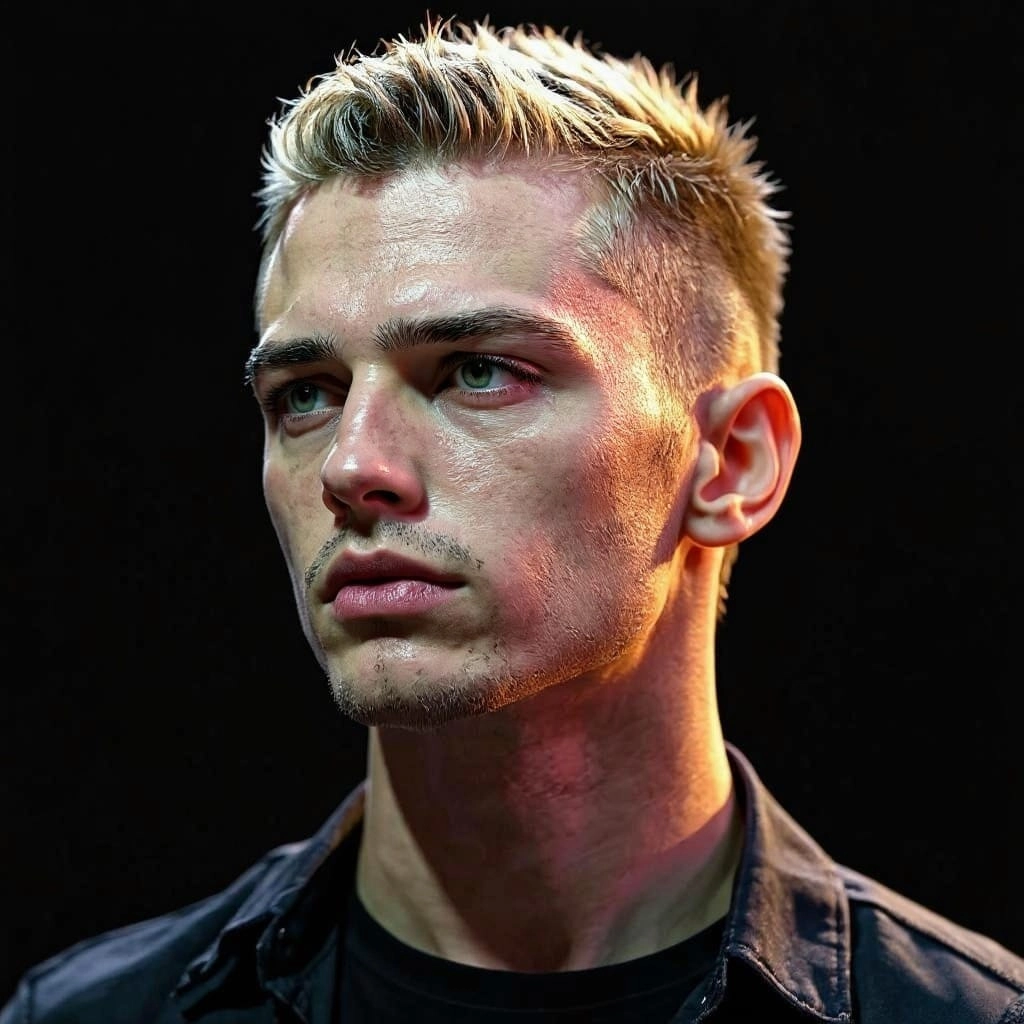
Cartoon & Illustration Styles
Turn photos into vibrant cartoon or comic-book illustrations. The AI captures key features while applying bold colors and stylized lines for engaging digital content.
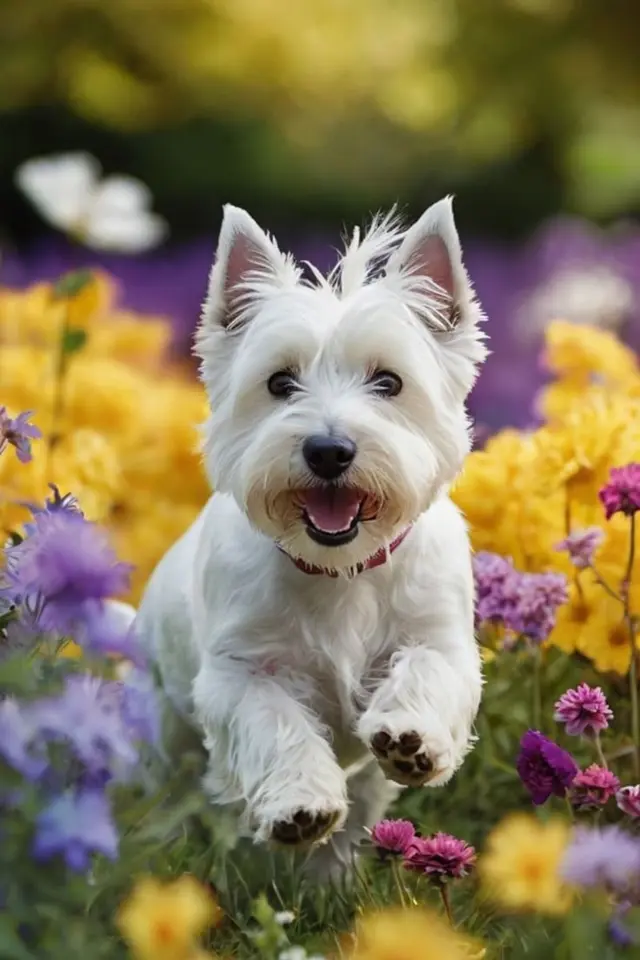
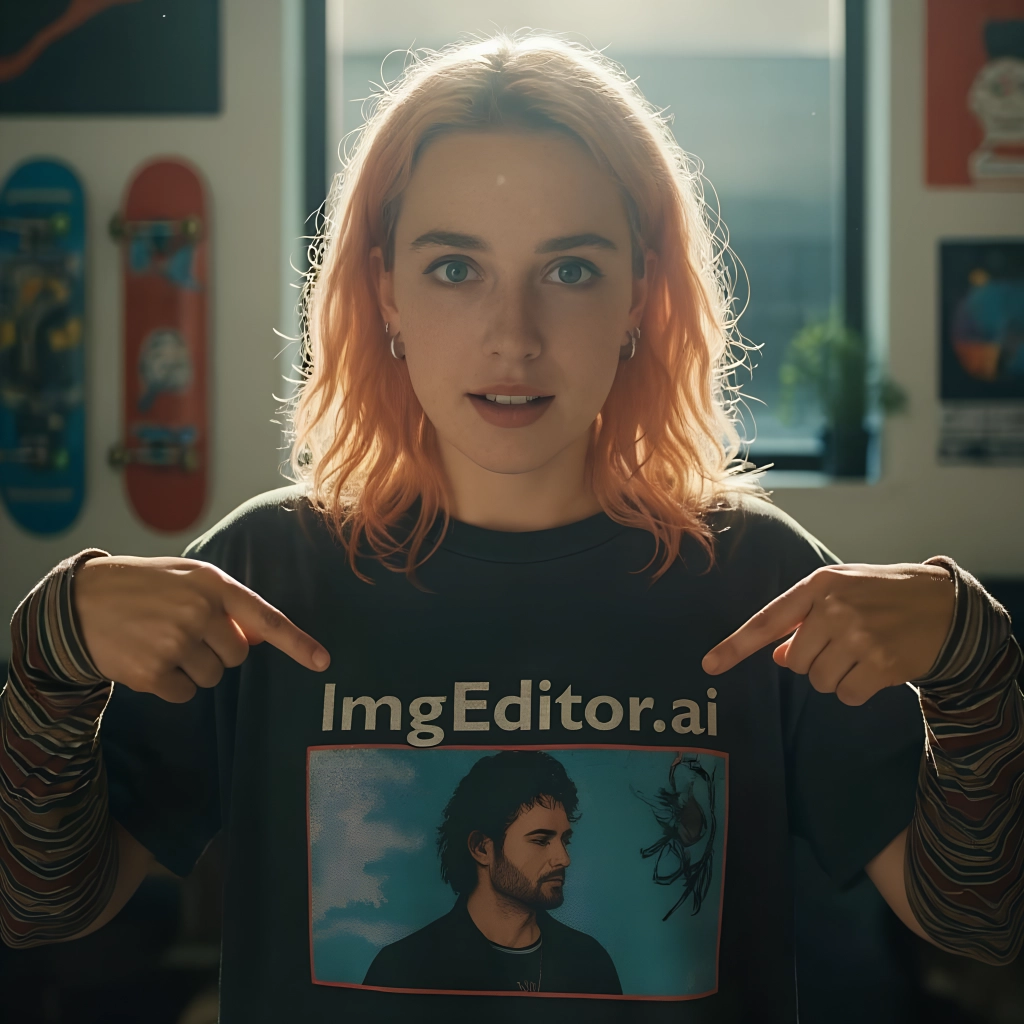
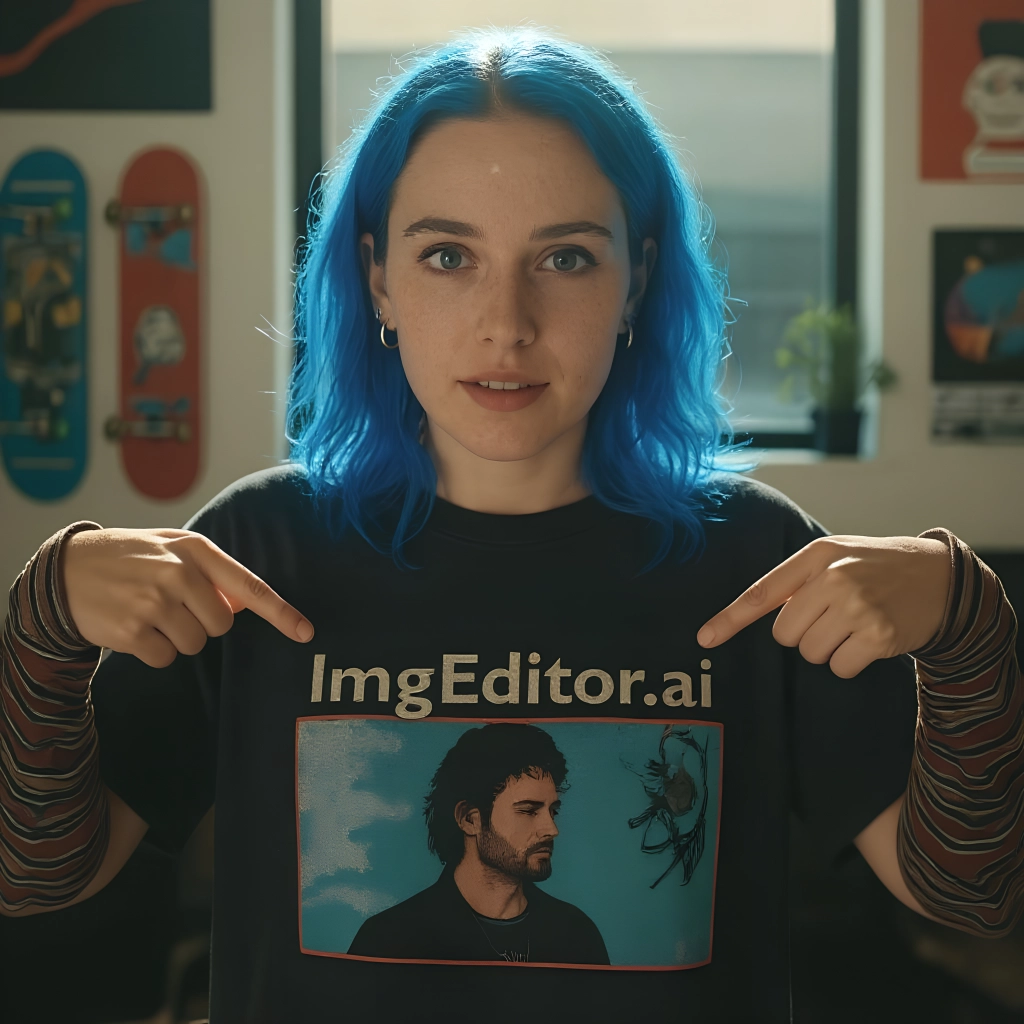
Hair & Appearance Changes
Swap hair color, try a new style, or adjust appearance features while the AI maintains natural proportions and realistic textures.
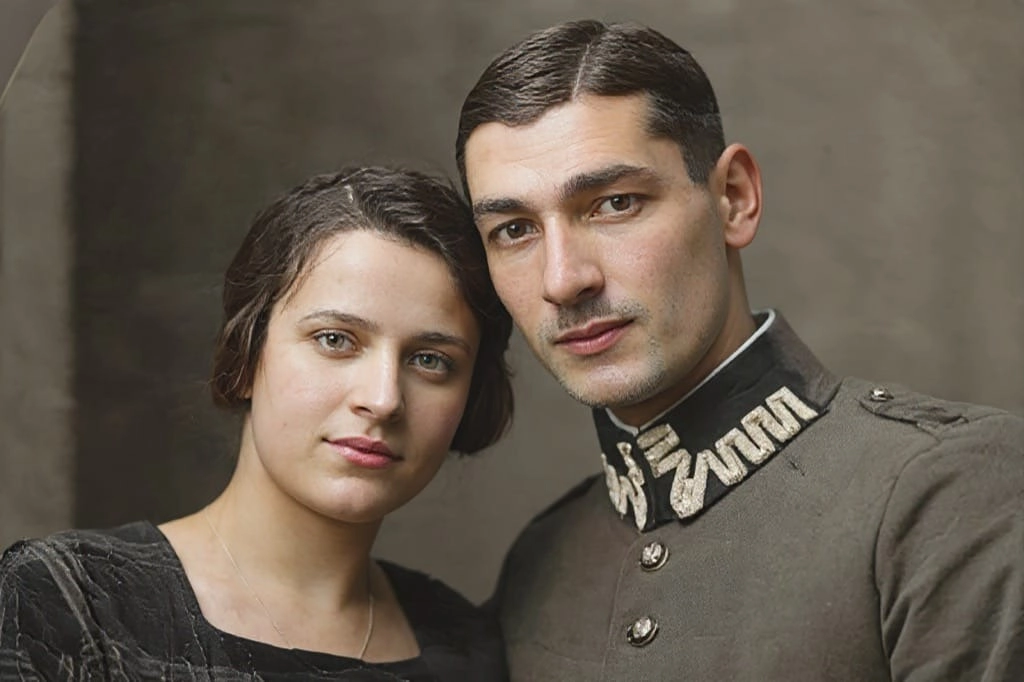
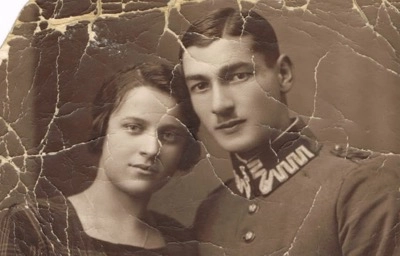
Photo Restoration & Enhancement
Repair old or low-quality images by removing artifacts, improving clarity, and boosting overall quality through AI-driven reconstruction.
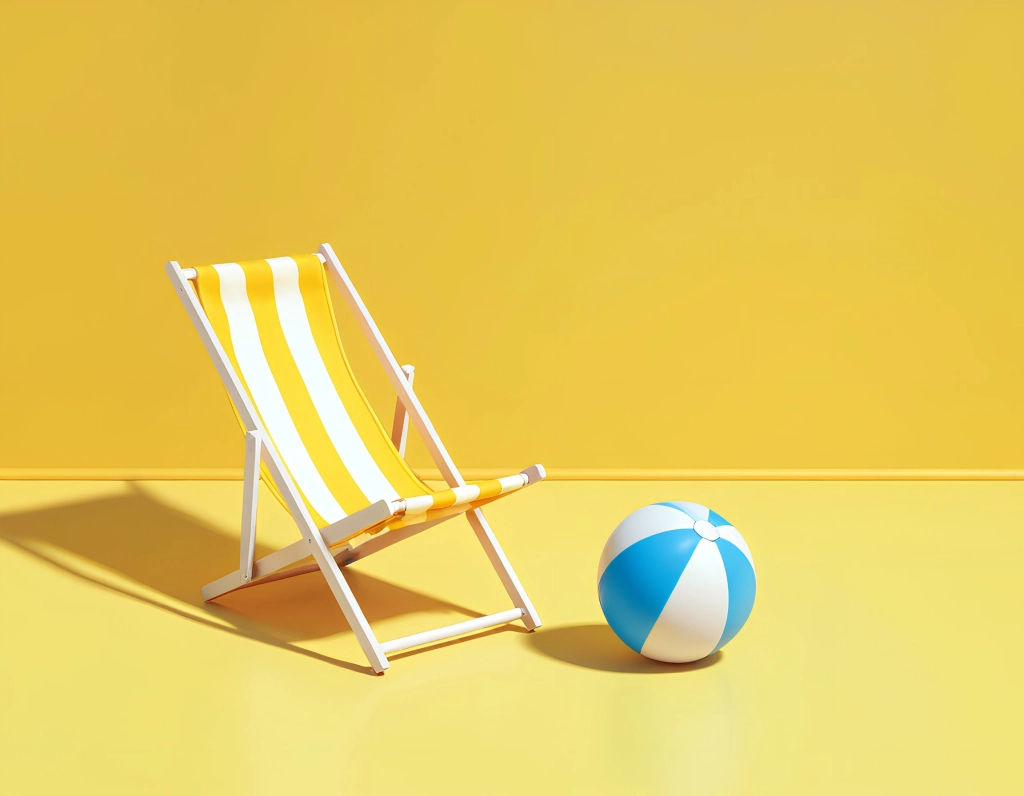
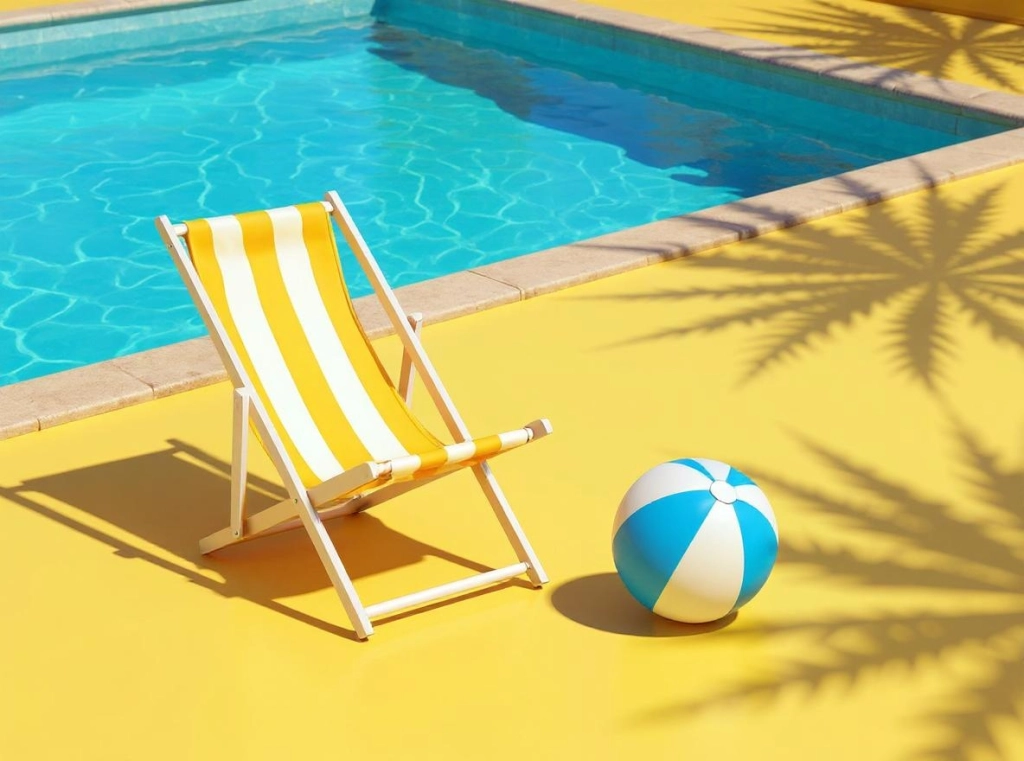
Background Replacement
Swap or modify backgrounds while perfectly preserving the subject. Create dramatic scene changes for creative photography or professional presentations.
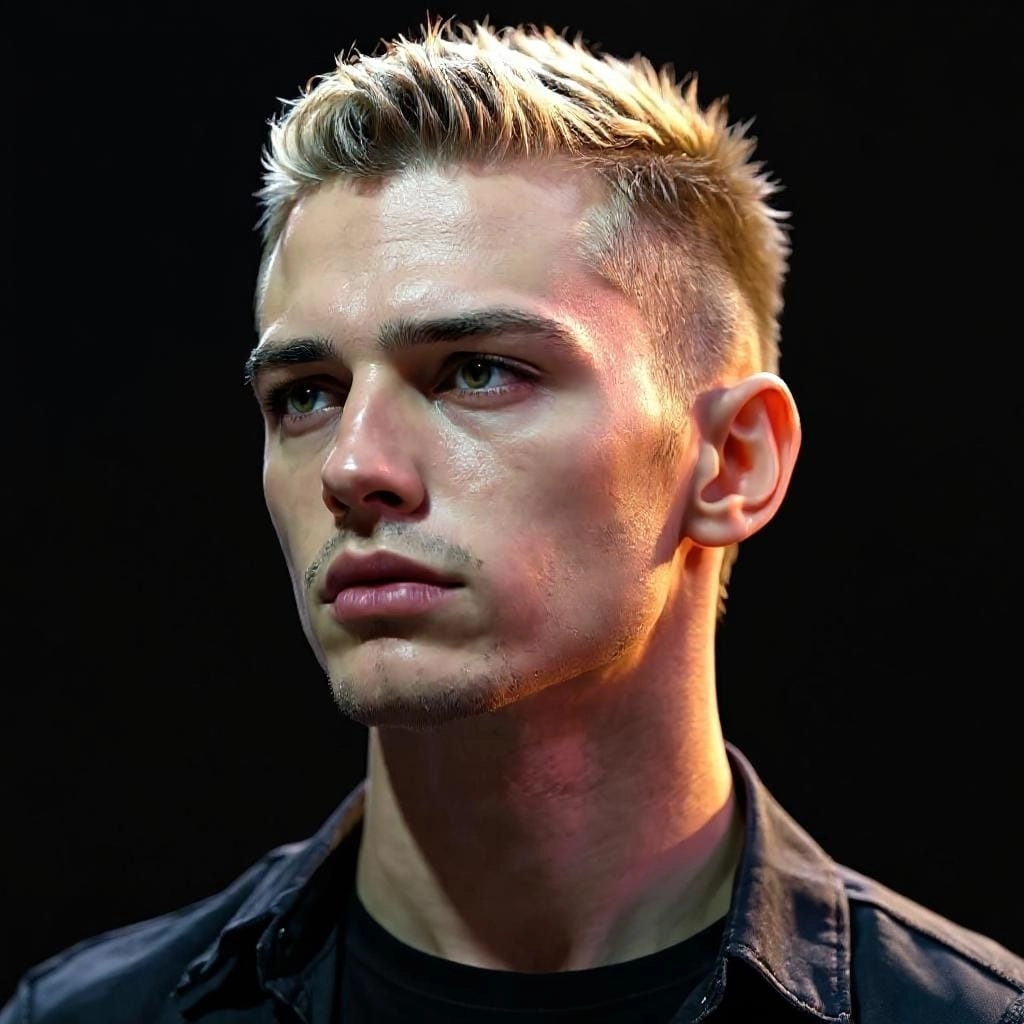


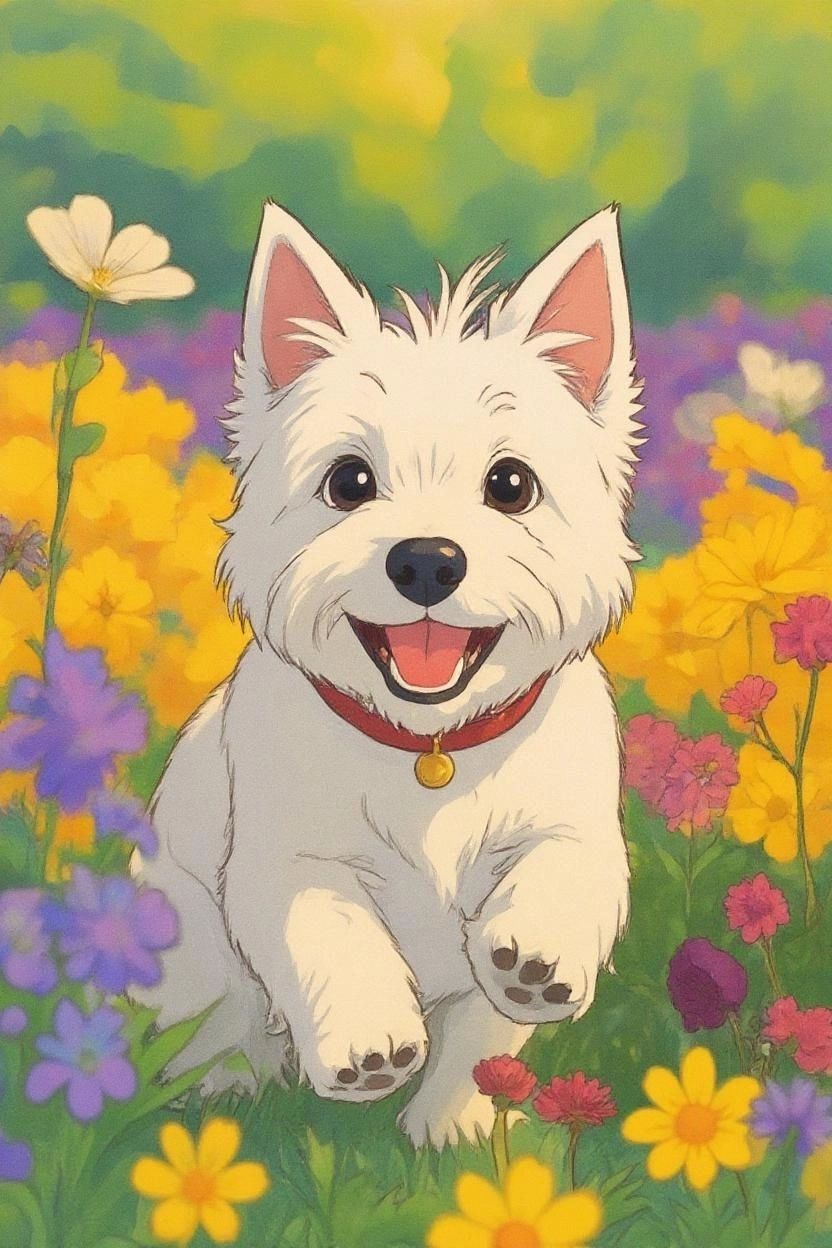
Anime & Artistic Conversion
Convert photos into Studio Ghibli, anime, or fine-art styles. The AI reproduces distinctive textures and aesthetics for stunning artistic output.
Image to Image AI vs Manual Photo Editing
Editing a photo by hand means selections, masks, and layers. Here's what changes when a prompt does the work.
Image to Image AI
- Describe any edit in one line — done in seconds
- Restyle, swap objects, or change backgrounds at once
- No masks, layers, or Photoshop skills needed
- Iterate looks fast by tweaking the prompt
Manual Photo Editing
- Hand-select and mask every region to change
- Each effect is a separate, fiddly step
- Needs real software skills and time
- Redoing a look means starting over
Starting from scratch with no source photo? Use the [AI image generator](/ai-image-generator) for text-to-image — the image to image AI is for transforming a photo you already have.
What People Use Image to Image AI For
One photo plus a prompt covers a surprising range of jobs.
Restyle Content for Social
Turn a plain selfie into cartoon, anime, or Ghibli-style art for eye-catching posts. It gives a fresh look in seconds without a designer.
Product & Background Edits
Swap a product's background, clean up clutter, or drop your subject into a new scene — great for listings, mockups, and marketing without a studio shoot.
Concept & Iterate Fast
Try ten creative directions in minutes. Change the prompt to explore styles, colors, and edits, then keep the version that works — ideal for moodboards and design.
Pro Tips for Image to Image AI
Small prompt habits that get much better transformations.
Be specific in your prompt
Name the style, colors, objects, and mood you want. 'Studio Ghibli style, warm sunset colors' beats a vague 'make it artistic.'
Use the strength slider
Lower strength keeps results close to your original (subtle edits); higher strength allows bolder, more dramatic transformations. Start around the middle and adjust.
Start from a clear source image
The sharper and higher-quality your input, the more faithfully the AI can transform it. Fix a blurry photo with the [AI image enhancer](/image-enhancer) first if needed.
Iterate instead of over-prompting
Rather than cramming everything into one prompt, apply changes in a couple of passes — transform the style first, then refine details.
HOW TO
How to Transform Your Image
Upload a Photo
Start by uploading any image — photos, digital art, or illustrations all work. The AI handles a wide range of input styles and formats.
Describe the Change
Write a natural-language prompt explaining what you want: a style shift, object swap, color change, or any creative edit you can imagine.
Pick a Model & Generate
Choose from models optimized for different tasks — style transfer, object editing, or general-purpose transformation — then hit generate.
FAQ