Free HEIC to JPG Converter
Convert iPhone HEIC photos to universally compatible JPG right in your browser. No upload, no sign-up — your photos never leave your device.
Converted in Your Browser, Never Uploaded
A full HEIC decoder runs inside your browser via WebAssembly, so your photo is decoded and re-encoded as JPG entirely on your device. Unlike most 'free' HEIC to JPG converters, there is no server upload step at all — your camera roll never leaves your hands.


Made for iPhone & iPad HEIC Photos
Handles .heic and .heif files exactly as shot by iOS — including photos AirDropped or synced to a Mac or PC that Windows apps refuse to open. Open this HEIC to JPG converter right on your iPhone and convert straight from the camera roll.
High-Quality JPG That Opens Everywhere
Photos are re-encoded at 92% JPG quality — visually identical to the original HEIC — in the universal format that opens on Windows, Android, the web, and every app that ever rejected a .heic file.
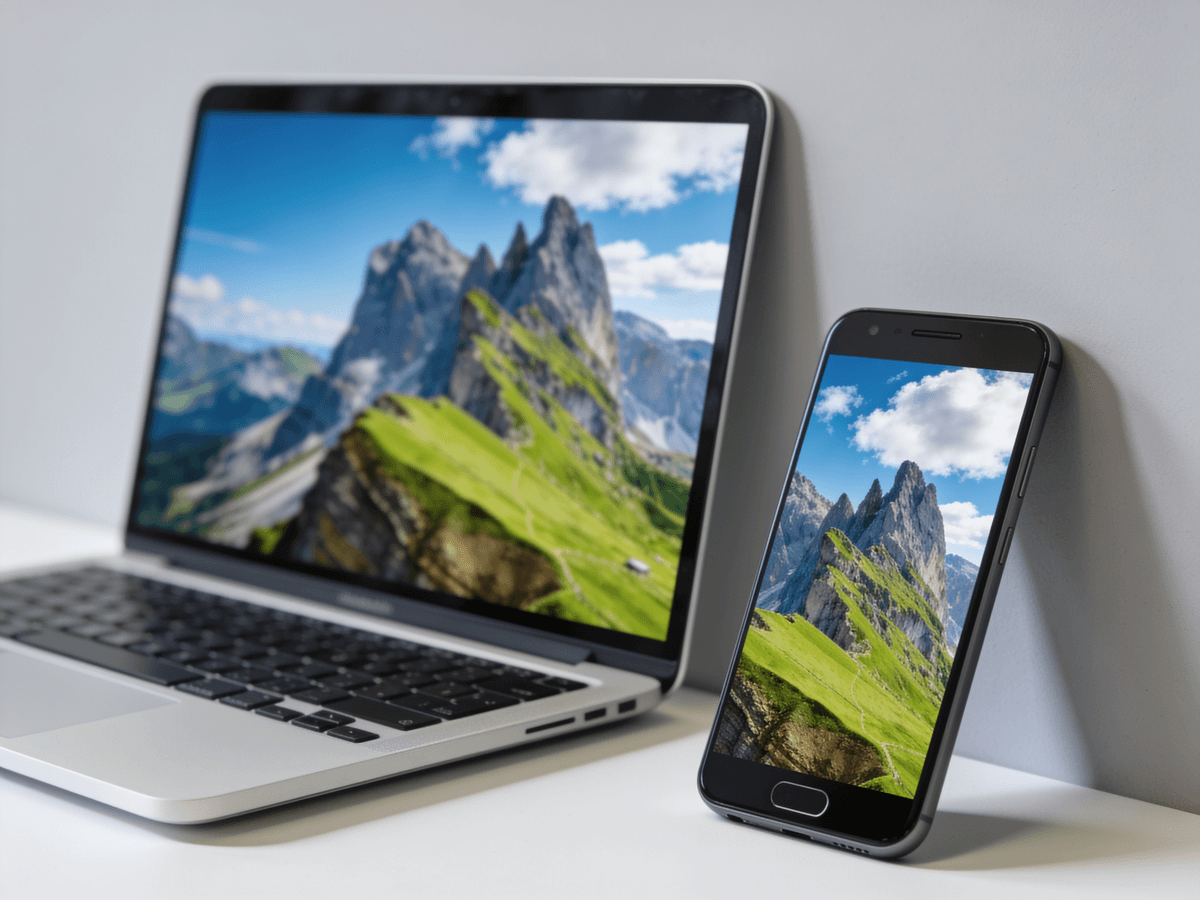
In-Browser HEIC to JPG vs Upload-Based Converters
Most online HEIC to JPG converters send your photos to their servers. This one keeps everything on your device.
This HEIC to JPG Converter
- Photos are decoded and converted locally — nothing is uploaded
- Instant conversion with no queue, no wait, and no daily cap
- No account, no email, no watermark on the JPG output
- Works offline once the page has loaded
Upload-Based Online Converters
- Your private photos are uploaded to and stored on a stranger's server
- Slower — you wait for upload, processing, then download
- Often gated behind sign-ups, daily limits, or watermarks
- Useless without a stable internet connection
For something as personal as your camera roll, a HEIC to JPG converter that never uploads your photos is simply safer.
When You Need to Convert HEIC to JPG
HEIC is efficient, but JPG is what the rest of the world actually accepts. These are the moments people reach for a HEIC to JPG converter.
Sending Photos to Windows or Android
A friend on Windows or Android can't open your .heic photo. Convert HEIC to JPG first and it opens on any device, no special app required.
Uploading to Websites & Forms
Job portals, government forms, and marketplaces often reject HEIC uploads. A JPG sails through every upload field that turned your iPhone photo away.
Printing Your Photos
Most print kiosks and photo-lab websites don't accept HEIC. Convert to JPG so your memories actually make it onto paper.
Email Attachments
Email a .heic file and the recipient often sees nothing they can open. JPG attachments preview and download correctly in every mail client.
Editing in Older Software
Legacy photo editors and design tools predate HEIC. Convert to JPG and drop the image straight into the software you already use.
Posting Online & to Social
Some CMS platforms and older forums still choke on HEIC. A JPG is the safe, universal format for blogs, listings, and community posts.
Tips for Converting HEIC to JPG
Small things that make HEIC to JPG conversion smoother and keep your photos looking their best.
Convert Straight From Your iPhone
This HEIC to JPG converter runs in mobile browsers too. Open the page on your iPhone, pick a photo from your camera roll, and download the JPG without a desktop.
Stop HEIC at the Source
To avoid converting every time, set iPhone Settings → Camera → Formats to 'Most Compatible' — new photos will save as JPG. Use this converter for everything already shot in HEIC.
Keep the Original HEIC
HEIC files are smaller and higher quality for archiving. Convert a JPG copy for sharing, but keep the original HEIC if you want to save storage on your own devices.
Batch Through Them Quickly
Because conversion is instant and local, you can convert HEIC files one after another with no upload wait. Drop, download, repeat — it takes seconds each.
HOW TO
How to Convert HEIC to JPG in Your Browser
Drop In Your HEIC Photo
Drag and drop a .heic or .heif file straight from your iPhone, iPad, or Mac — or click to browse. Files up to 25MB are supported, which covers every iPhone photo.
The Photo Is Decoded Locally
Browsers can't read HEIC natively, so this tool ships its own HEIC decoder as WebAssembly and runs it in your browser. Your photo is decoded and re-encoded as JPG without ever touching a server.
Download Your JPG
Save the converted JPG with one click. It opens on Windows, Android, and every app and website that ever rejected your HEIC.
FAQ